How to review similar photos on iPhone
Compare repeated shots manually, choose the expression or detail worth keeping, and understand why similar photos are different from exact duplicates.
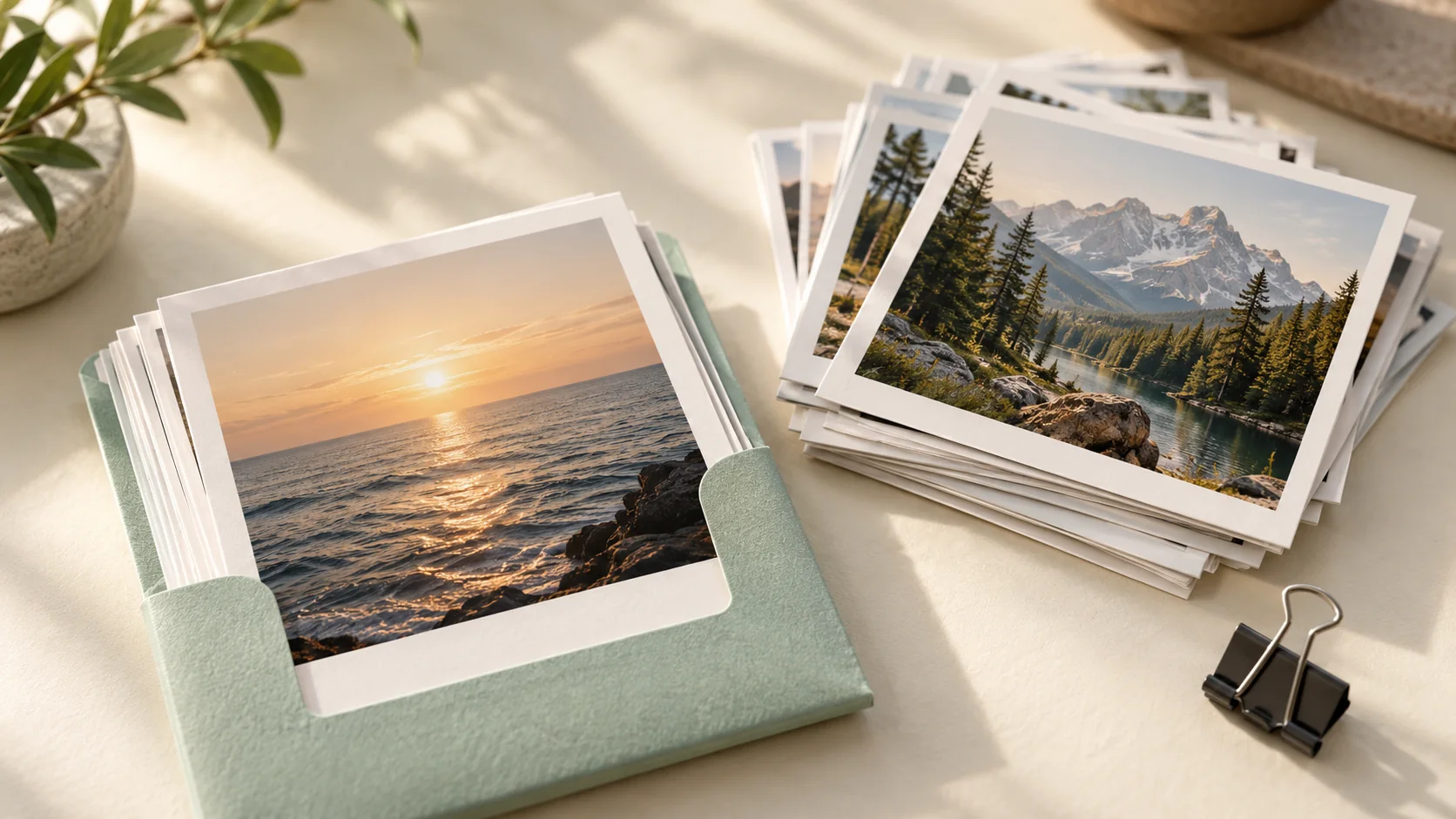
Open repeated shots at a useful size, compare the details that matter, keep the versions you value and delete only the extras you have reviewed. Similar-looking images are not automatically duplicates.
Start with a scene you recognize
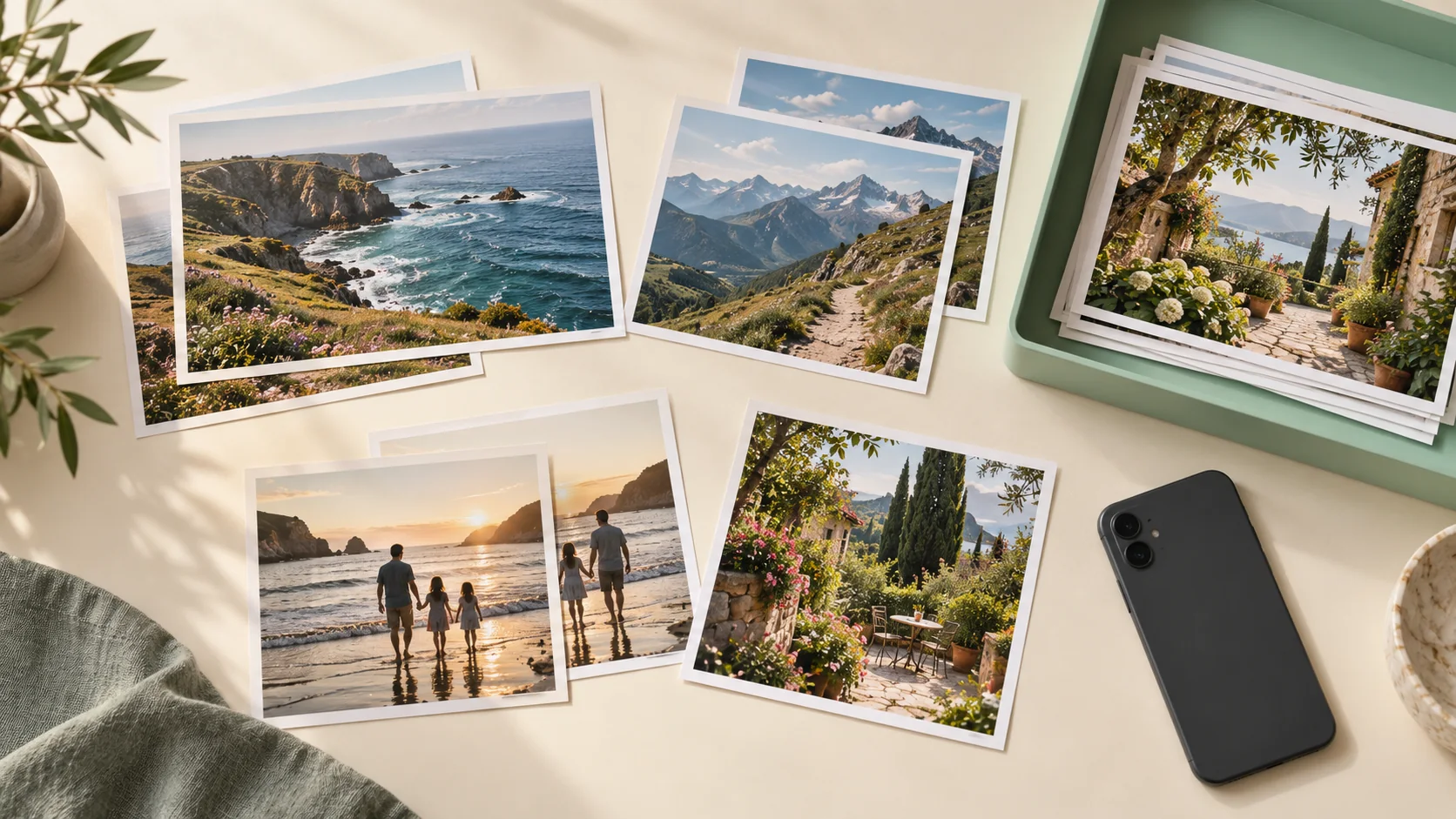
A short run of portraits, a meal photographed several times or repeated views from a trip gives you a bounded comparison. Review the group while its context is clear, rather than letting a tiny grid decide which image matters.
Open each candidate and compare the actual content. Expression, focus, framing, a small gesture or a useful background detail can make two nearly matching photos worth keeping. File size alone is not a quality or memory score.
Exact duplicates are a separate task
Apple’s Duplicates collection groups items it has detected as duplicates and offers a merge workflow. It may not identify every set that looks similar to you. Detection also depends on the library having been indexed.
Use the duplicate-photo guide for that native task. A similar-shot decision is more subjective and should not inherit an automatic “safe to remove” label from a duplicate-cleanup tutorial.
Give yourself a useful keep rule
For a repeated scene, decide what you want to preserve. It might be the clearest portrait, a wider view plus one detail, or two frames that show a meaningful change. You do not need a rigid one-photo-per-scene rule.
Leave uncertain items in place. Keeping a small extra set is a reasonable outcome when you are not sure. Cleanup should reduce unwanted repetition, not make you regret deleting the only version of a moment you later wanted.
Use Pixtrim for manual swipe review
Pixtrim’s confirmed swipe workflow lets you review pictures, keep the ones you want and mark extras before a final selection check. It can help you work through a month or album whose repeated scenes you recognize.
This guide describes manual review. It does not promise an automated near-identical-photo finder or a system that chooses your best shot for you. The swipe feature is the relevant workflow here; exact-duplicate cleanup is described separately.
Confirm with the whole library in mind
Before confirming, inspect the marked selection and keep an independent copy of anything important. iCloud Photos synchronization means a deletion can affect other devices and the cloud library too.
Recovery depends on the operating system and account state. A careful comparison before removal is more dependable than assuming you can always restore a picture after a rushed batch.
Sources and further reading
- Delete photos on your iPhone or iPad — Apple Support, checked October 26, 2026.
- If you cannot find the Duplicates album — Apple Support, checked October 26, 2026.
- Pixtrim editorial policy and correction process
Native controls can vary with iOS version and library setup. App feature access and offers can change; check current information before subscribing.