
Big clips.
A more focused review.
A recording can take more room than its thumbnail suggests. Bring larger videos into a focused cleanup set and decide which ones still deserve a place.
Get Pixtrim for iPhoneiOS 17+ · Free to download · In-app purchases
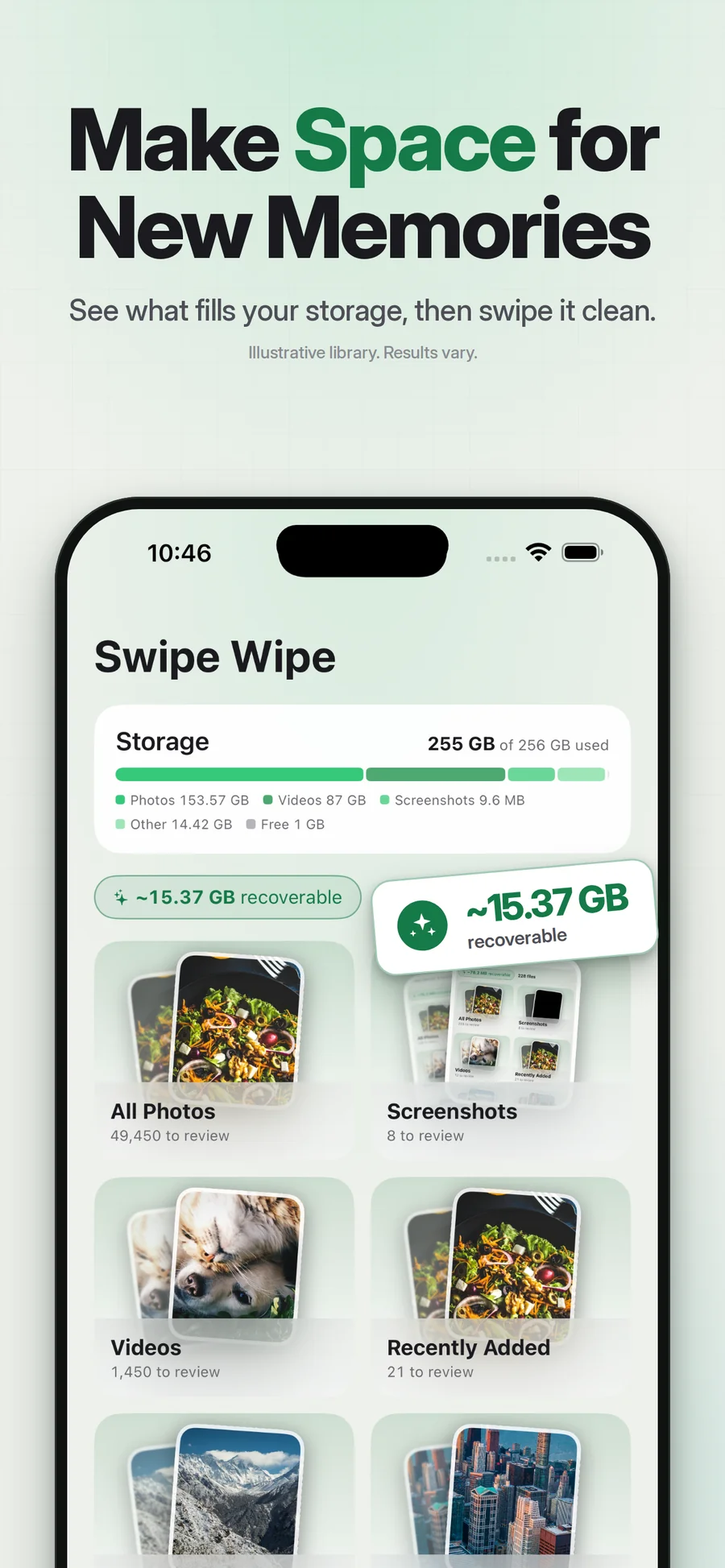
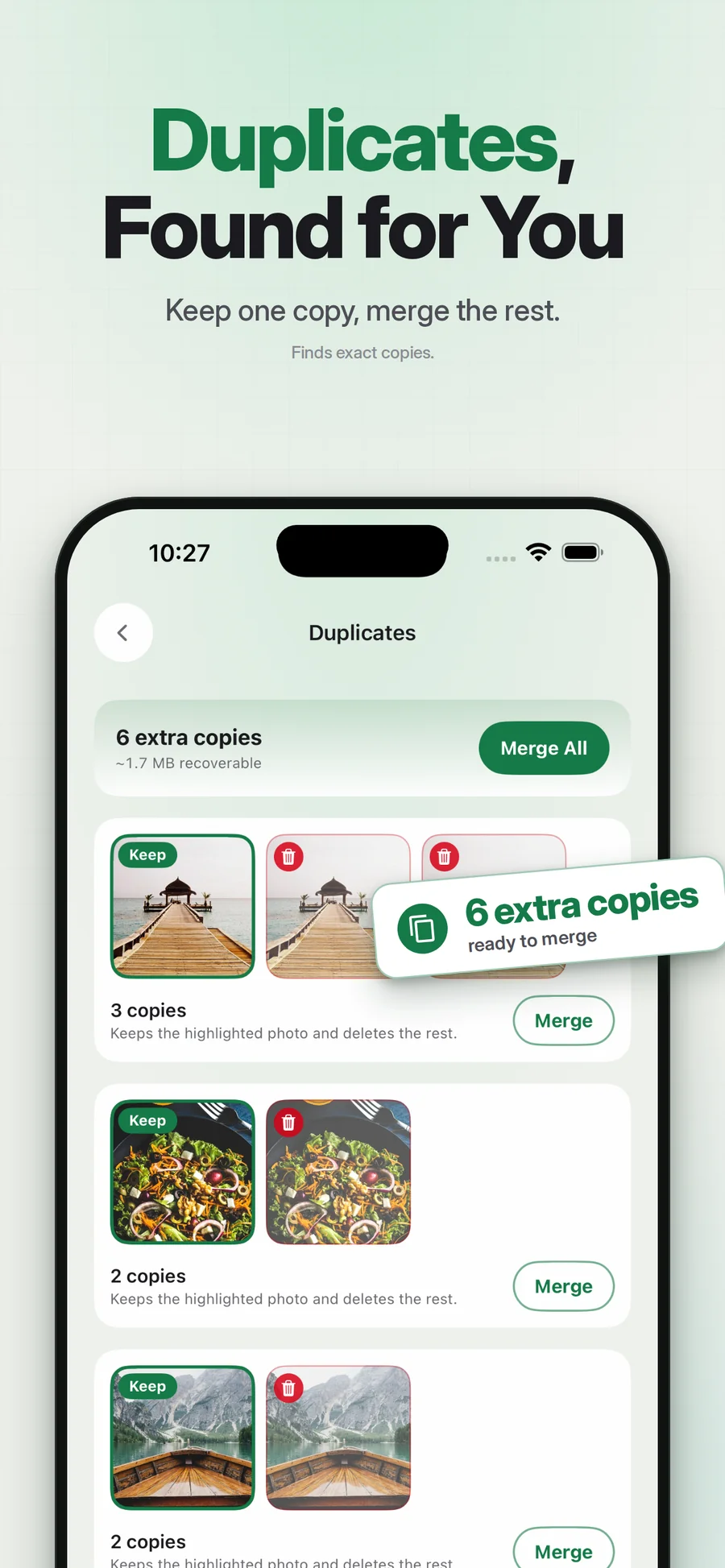
Supplied App Store artwork. Library contents and storage figures are examples. Some screens show the earlier Swipe Wipe name.
Start with the media worth checking.
Pixtrim includes a large-video finder so you can review bigger recordings without opening every library item in turn. Size is a starting point for attention, not a reason to delete an important moment.
Play enough of a clip to recognize it. Keep or independently archive the recordings that matter. Review the final selection before removal, and remember that size estimates do not guarantee an exact immediate change in iPhone Storage.
Simple choices.
A deliberate finish.
Open the large-video finder
Surface a focused set of recordings to review.
Look beyond the thumbnail
Identify the clip and preserve important recordings independently.
Confirm what can go
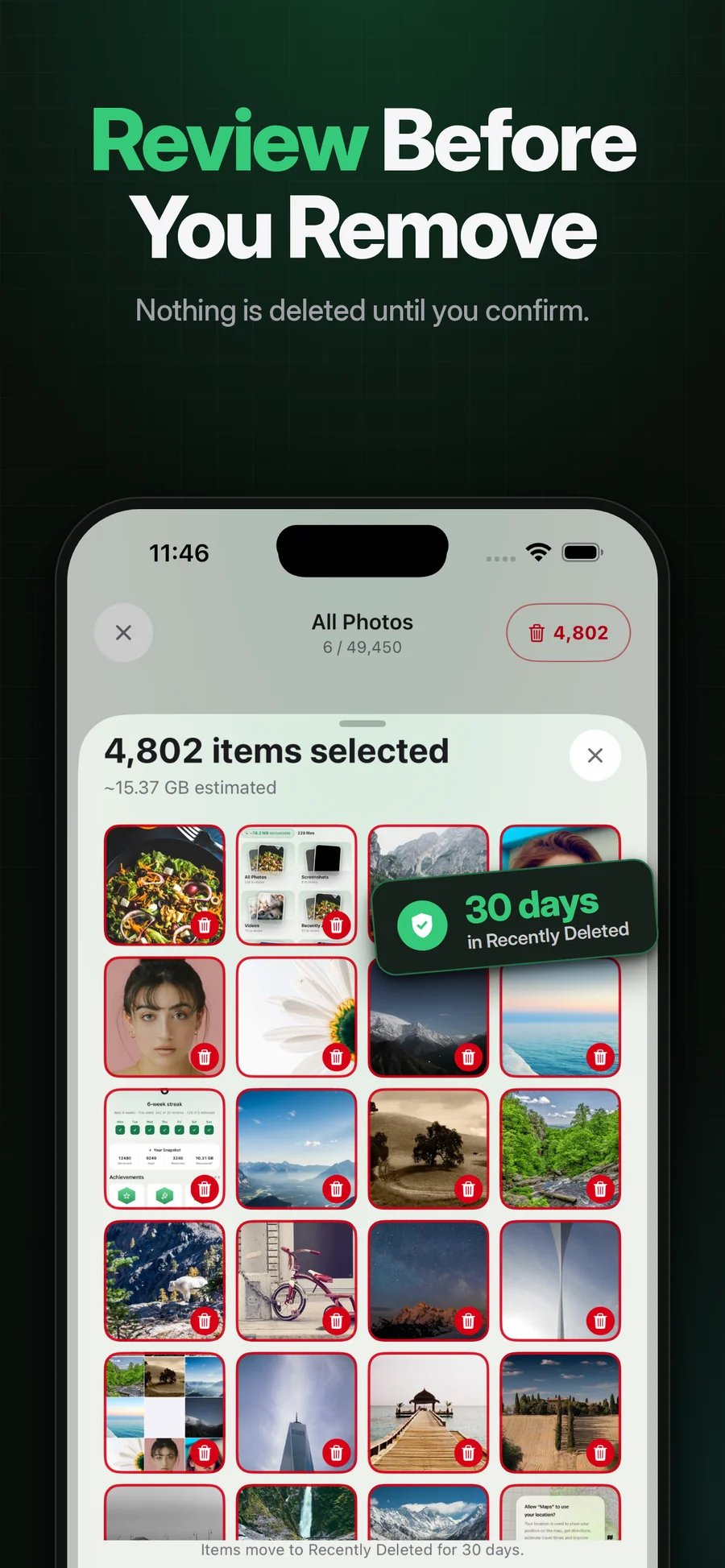
Review selected media before the operating system removes it.
A useful starting point
Prioritize a targeted video review when media is taking substantial space.
Keep valuable recordings
Large does not mean unwanted. You make that judgment.
Clear scope
This is finding and removing selected videos, not compressing or repairing them.
Will Pixtrim compress my videos?
Will the size estimate equal space instantly freed?
Keep exploring.
Keep the photos you love.
A recording can take more room than its thumbnail suggests. Bring larger videos into a focused cleanup set and decide which ones still deserve a place.
Get Pixtrim for iPhoneiOS 17 or later · Free to download · In-app purchases